
Group lessons are the core offering for most academies. They run on a recurring schedule within a term and support multiple students per session. Each lesson is tagged with one sport; terms are academy-wide and can hold group lessons for tennis, pickleball, padel, and your other active sports in the same period. See CourtSync for tennis for term lessons, scheduling, and enrollment features.
Prerequisites
Before creating a group lesson, ensure you have:
- At least one term with valid start and end dates
- At least one sport configured in Academy Settings → Sports
- A coach assigned to your academy (invite one if needed)
- Optional: courts and locations configured
- Optional: custom age groups if you use academy-specific groupings
Start a new group lesson
Open the lesson form from either:
- Terms → open a term → Create Lesson, or
- Calendar → Create Lesson
Select Group as the lesson type and enter a descriptive name such as "Junior Orange Ball — Tuesday/Thursday."
When your academy runs more than one racquet sport, choose the sport for this lesson. Single-sport academies assign it automatically. Programs in the form are filtered to match the selected sport.
Assign term and schedule
Select the term this lesson belongs to. Set the days of week, start time, and end time for recurring sessions. Sessions automatically generate for each matching day within the term date range.
Set capacity and enrollment rules
Configure max capacity for the number of students allowed. If your academy has allow enrolment when full enabled in settings, students can still join a waitlist when capacity is reached (requires waitlist to be enabled in Academy Settings).
Set minimum students for lesson alerts at the academy level — lessons below this threshold appear in low-enrollment alerts on your dashboard.
On Starter plans, students or guardians submit a request booking on your public page (no member portal or online checkout). On Professional and Enterprise, students or guardians book and pay through your public academy page when Stripe Connect is set up.
Start from a development program (optional)
Near the top of the Create Lesson drawer, choose a Development program (Professional+ plans) to prefill sport, skill level, age group, description, and cover image from that pathway stage. You can edit any field afterward; changing the program updates those fields again.
Configure age group and skill level
Choose an age group:
- Use legacy options (juniors, adults, all) with optional ball color for juniors
- Or select a custom age group if you configured academy-specific groups in settings
Set the skill level so make-up credits and rebooking match compatible lessons. Use a specific level (beginner, intermediate, advanced) when the class is aimed at one band, or Any when the session accepts all levels — Any matches any other level when redeeming credits.
When you use custom age groups, pick the same age group on every lesson that should accept the same make-up credits (e.g. all "Green Ball" classes must share one age group, not duplicate labels).
On owner and coach calendars, age-group calendar colour drives slot fill. Sport appears as a glyph or badge only — it does not change fill colour.
Set pricing
Enter the term price — the amount students or guardians pay to enroll for the full term. If you offer flexibility, enable per-session drop-in pricing and set a per-session rate for students or guardians who prefer not to commit to the full term.

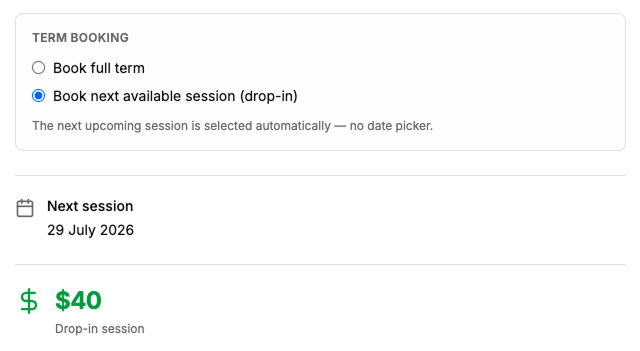
When a per-session price is set, students or guardians can choose Book next available session (drop-in) on your public booking page instead of enrolling for the full term. CourtSync selects the next upcoming session automatically — no date picker — and charges the drop-in rate for that session.
Assign coach, court, and location
Select the coaching staff member, court, and optional location. When you have multiple locations (Professional+), choosing a location limits the court list to courts at that venue. Assign courts that support the lesson's sport.
If you did not select a program at the start, you can still link one later in the same form — or leave None for a custom lesson without pathway tracking.
Save the lesson. It is now bookable on your public academy page. Saving also refreshes available make-up credits earned from bookings on this lesson if you change skill level or age group later.
Make-up credit compatibility
Credits earned from a group lesson can only be redeemed on lessons that match sport, skill level, and age group rules. Group and camp lesson types may redeem each other's credits when those rules match (e.g. a term absence credit used on a holiday camp day in the same sport).
Monitor enrollment
Track bookings from Bookings in the sidebar — see Managing bookings for Starter request confirmation, payment collection messages, and status actions. On a term's lesson list, Manage students opens the roster drawer — enrollments added there apply to the entire term. To add or remove a student for one session only, use Calendar and select the lesson on a specific date.
Use the dashboard's low-enrollment alerts to cancel or postpone under-enrolled lessons before the term starts.
Related guides
- Creating terms and lessons — term setup before group lessons
- Configuring age groups — custom labels and calendar colours
- Creating camp lessons — standalone multi-day camps and group ↔ camp credit rules
- Managing courts and locations — venues and public location filters
- Make-up credits and waitlist — credit types, waitlist, and compatibility